




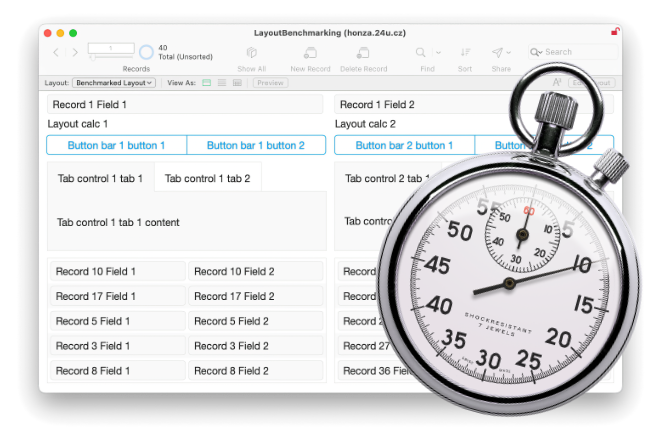
How long does it take to render a layout? In what exact order are things rendered? Does that order have an impact on performance? Which calculations are triggered while a layout is being rendered—and how many times? How long does all of that take, and how can we measure it precisely?
My first experience optimizing layout rendering performance goes back to the early 1990s, when I was unhappy with how long FileMaker Pro 3 took to draw my layout on a Macintosh Classic. Back then I discovered that I could make a huge difference simply by re‑arranging the layer order of the objects on my layout. I did not have any sophisticated tools to examine the rendering process, but FileMaker Pro 3 was so slow on the Mac Classic that I could literally see in which order objects appeared on the screen.
Fast forward to today: with fast processors and gigabytes of RAM, FileMaker 2025 can render far more on a layout in the blink of an eye, but objects no longer appear on the screen one by one. Most of them are rendered in the background and then displayed at once. So when a particular layout takes far too long to appear, how can we find out what is taking so long, and why?
How long does a layout take to render?
Let's start by finding out how long the whole layout takes to render. One method is to record your computer screen and then inspect the video. With 25 frames per second, you can usually measure the render time with roughly 40‑millisecond precision.
Another method I was still using around ten years ago is to add two unstored calculation fields to the layout: one in the top‑left corner on the bottom‑most layer, and the other in the bottom‑right corner on the top‑most layer. You can use Arrange > Send to Back and Arrange > Bring to Front to move any object to the bottom‑most or top‑most layer respectively. You can also use the Objects Browser to examine and manage the layer order of your layout.
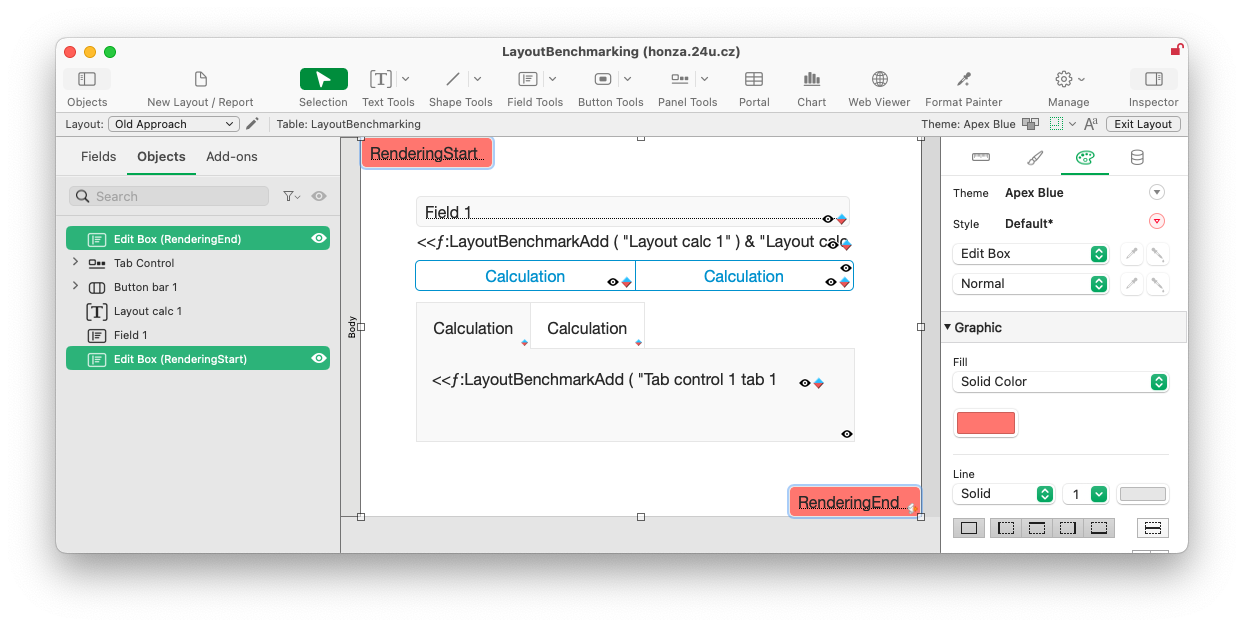
By collecting an exact timestamp using Get(CurrentTimeUTCMicroseconds) in those two calculations, you can then compute the difference as the time needed to render all the layers between the bottom and the top one. At least that's what I believed back then, and it might even have been true in some earlier versions of FileMaker Pro.
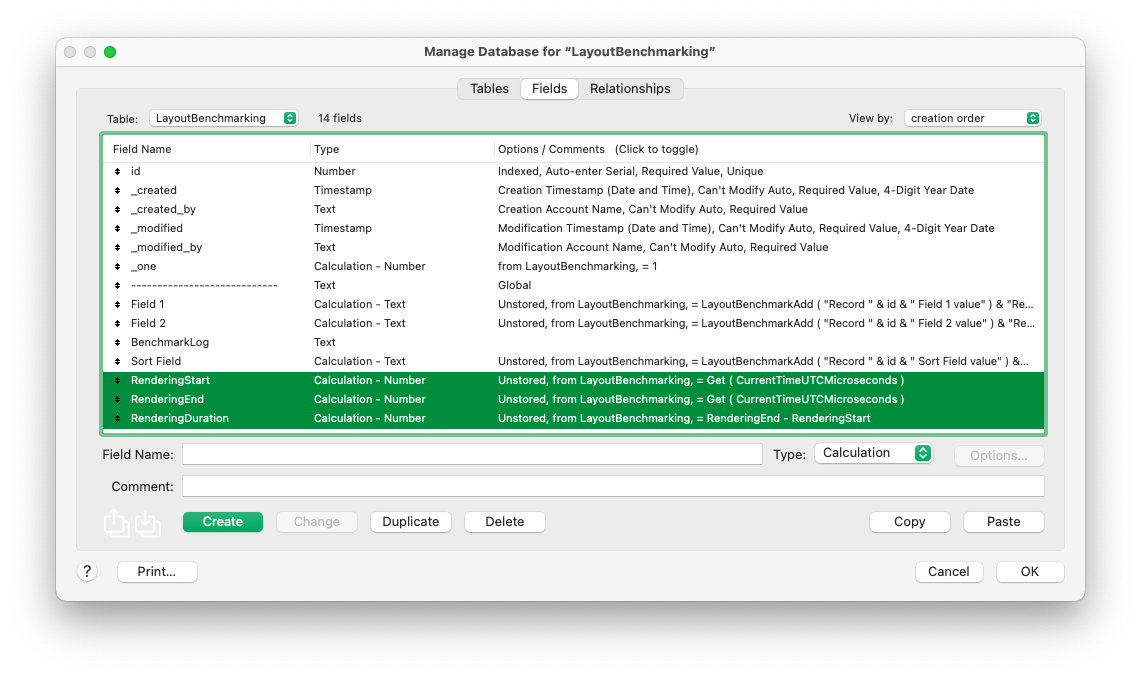
There is a huge caveat with this method, however: in order to render your layout, FileMaker Pro may have to do a lot of preparation work before calculating the first (top‑left) unstored calculation and also a lot of extra work after calculating the last (bottom‑right) one. So you do not capture the whole rendering time—only its portion.
Luckily, when I was working on an optimization for a client in 2017, I discovered a much better method that uses the OnTimer script trigger. I learned that a scheduled script, even when you set the interval to 1 millisecond, does not start immediately. It waits for FileMaker Pro to finish whatever task it is currently working on, including rendering a layout. So to capture the total time needed to render a layout, you can simply collect one precise timestamp before going to the layout, install an OnTimer script trigger, and then collect another timestamp in that script trigger.
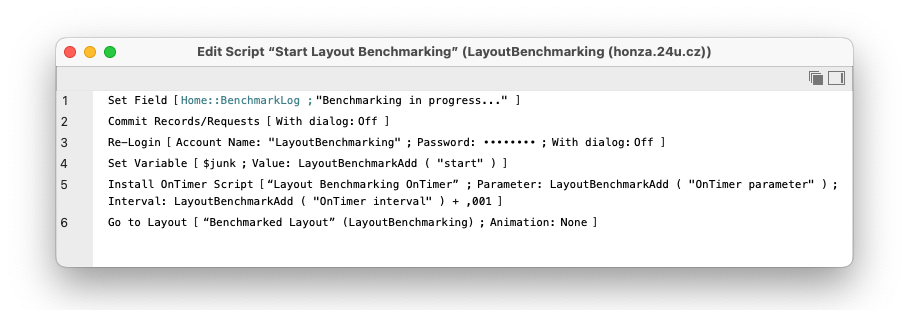
This works because layout rendering is still handled in the same thread as script execution. The only apparent exception is web viewers, whose contents are handled by separate threads in parallel with FileMaker scripts. This may change in the future, but for now the OnTimer trigger seems to be the most reliable way to measure how long a layout takes to render.
Identifying the most expensive objects
FileMaker Pro does not currently provide any layout profiling tool like the page‑rendering timelines available in popular web browsers. It will be great if and when Claris provides something like that in the future, but for now we have to use what we have.
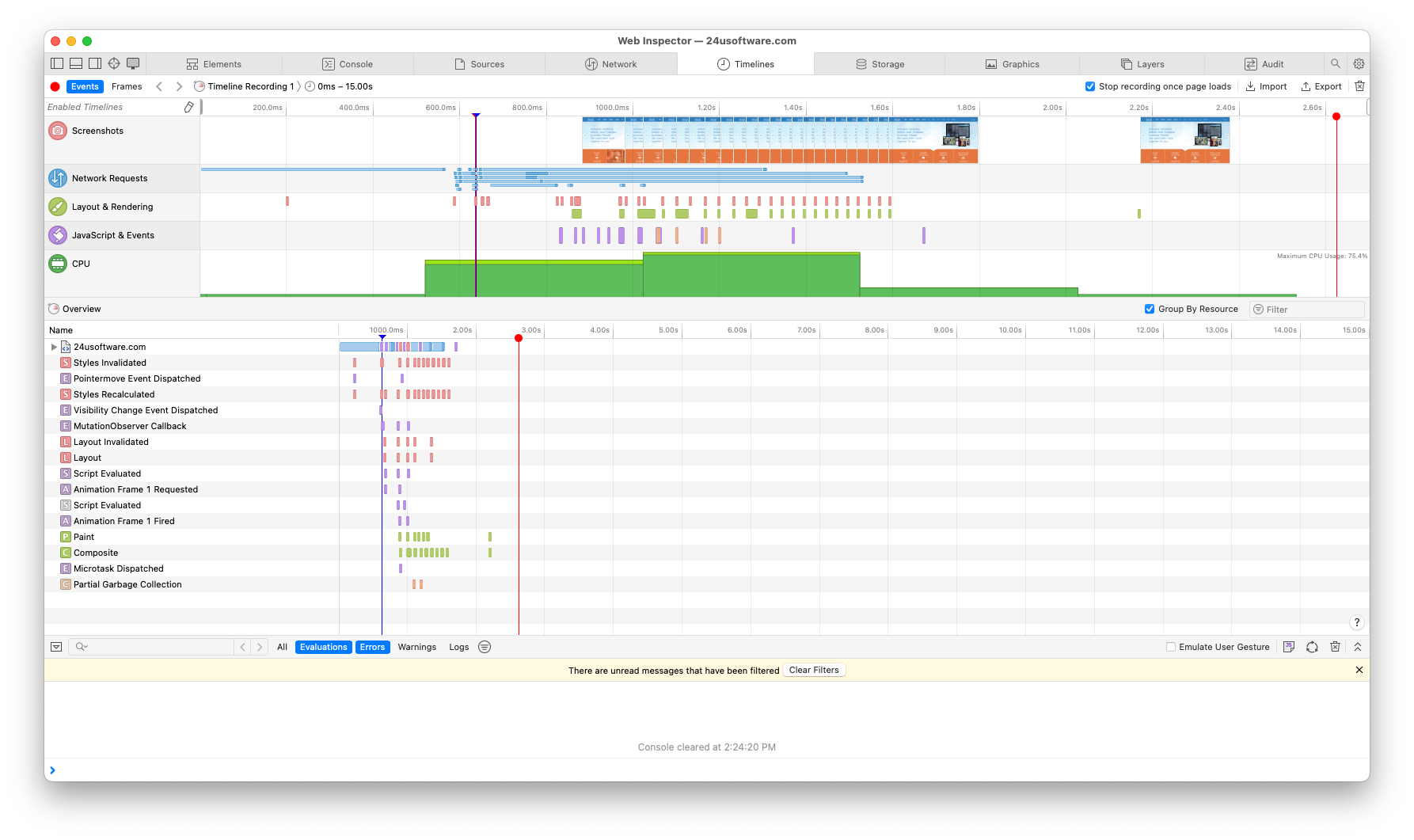
The most efficient method, also mentioned by Wim Decorte in his Claris Engage session “Troubleshoot like a Pro with Claris FileMaker Server”, seems to be brute‑force testing combined with binary splitting. Simply make a copy of your layout, delete half of the objects, and measure how much rendering time you have saved. If the improvement is negligible, delete half of the remaining half. If it is significant, revert and delete the other half instead, then delete half of that. Measure again and keep repeating this until you have just one (or a few) objects left that are responsible for most of the rendering time.
Another approach you might consider is to create a custom function that builds a layout‑rendering log for you (using the Let function to add lines to a global variable) and attach it as a “Hide object when” calculation to every object or group of objects. Here is a version of such a custom function that I created for my own testing:
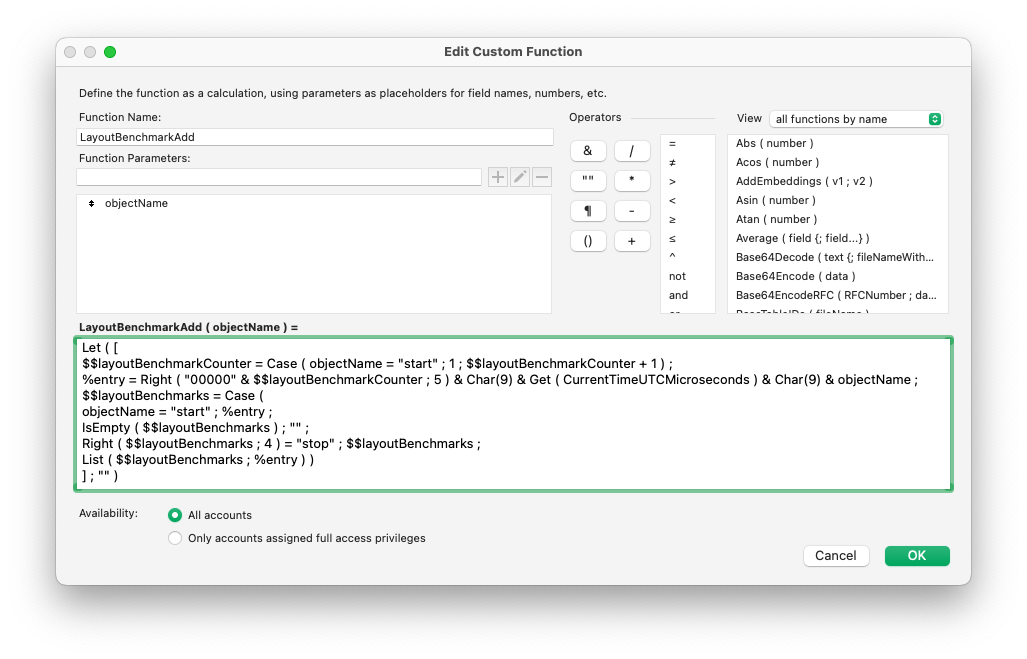
This function takes one parameter, which is the name of the object or event to record in the log. It logs not only the precise timestamp of each entry, but also counts the number of times it has been called, and recognizes “start” as a special object name to clear any previously collected log entries and “stop” as a signal to stop adding more entries to the log.
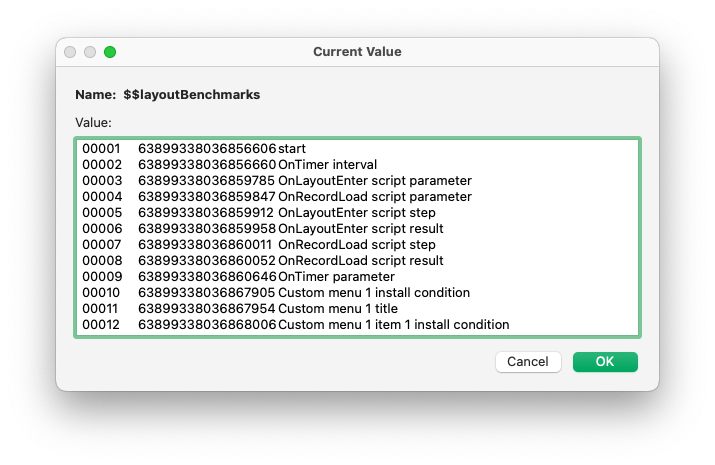
Unfortunately, even using this custom function in every object's hide condition is not sufficient, because FileMaker Pro does not seem to do everything related to a specific object in one go. For example, if you have an unstored calculation field on your layout, placed in the top‑left corner on the very bottom layer, its hide condition is evaluated first, immediately after installing custom menus. But the value of the field is not calculated until all the other objects' hide conditions and many other things have been processed. Even most (but not all) conditional formatting and portal field values are processed before this top‑left calculated field.
Profiling the layout rendering process in detail
You might be asking now: how do I know all this? Well, I created the custom function above not just to attach it to hide conditions, but to capture a log of every possible place where a calculation can be evaluated as part of rendering a layout. Then I built an example layout with various different objects: specifically two fields, two layout calculations, two button bars (with two buttons each), two tab controls (with two tabs each), two portals, and two web viewers.
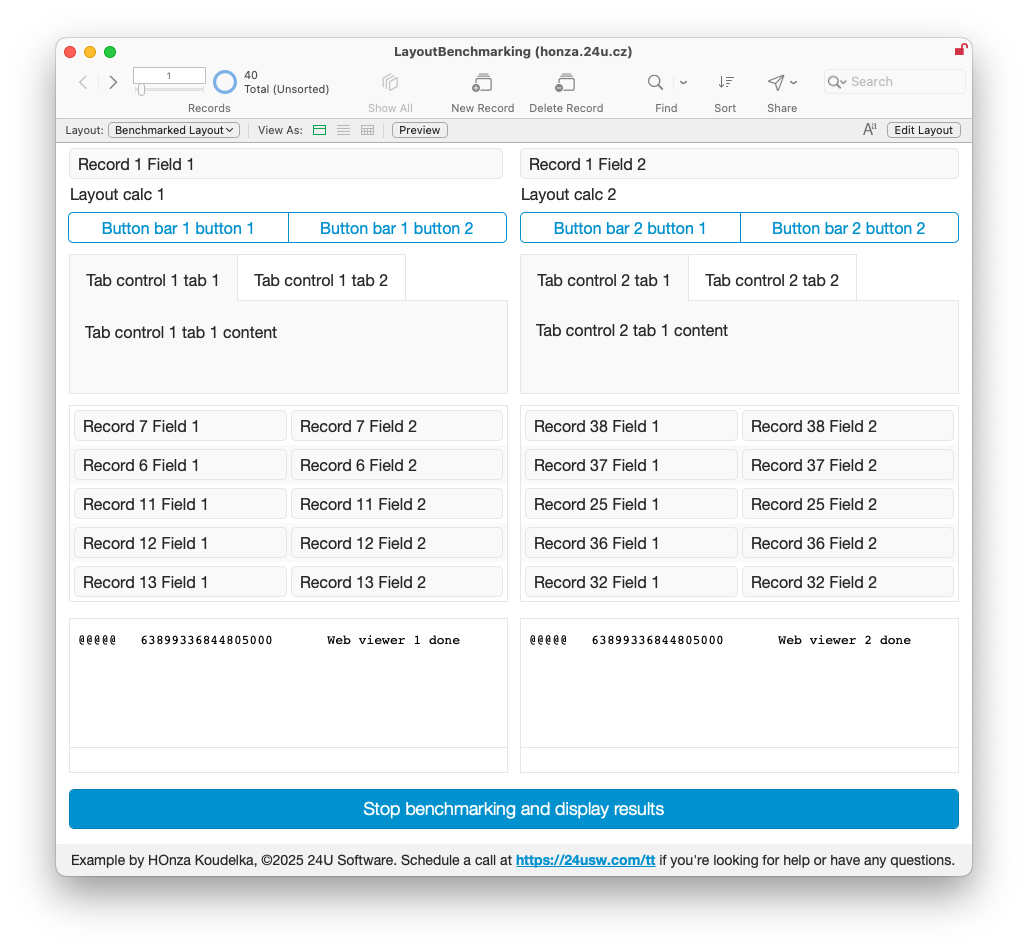
Then I attached the custom function to every possible point I could think of—unstored calculation definitions, hide conditions, conditional formatting, button names, tab names, custom menus, layout script triggers, and even record‑level privileges. I also created a script that re‑logs in as a regular user, switches to my test layout, and collects all the log entries into a global variable, plus another script that stops the benchmarking and displays the detailed log.
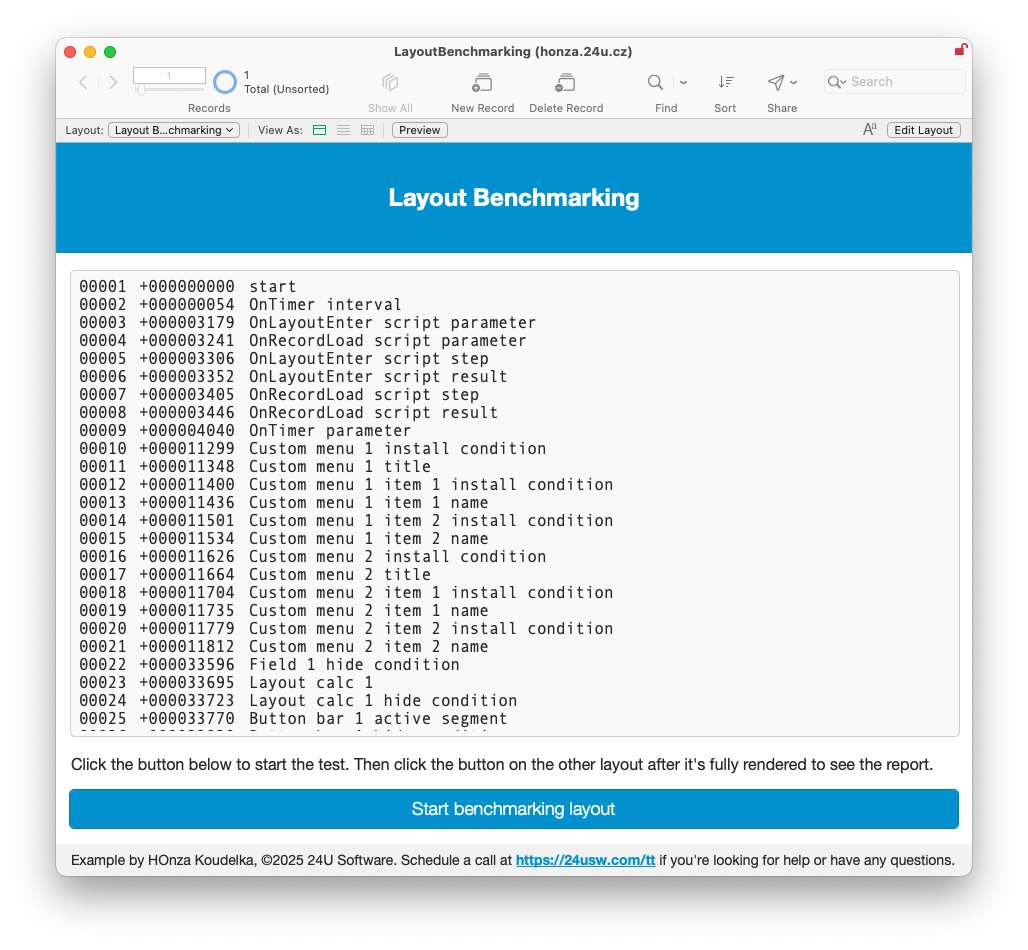
Download a copy of this example
This example revealed not only a very detailed log of which calculations are evaluated in what order and at what time, but also that some of them are evaluated multiple times unnecessarily. Just to display this one sample layout, my custom function was evaluated 824 times and the privilege to view the current (first) record was checked 102 times!
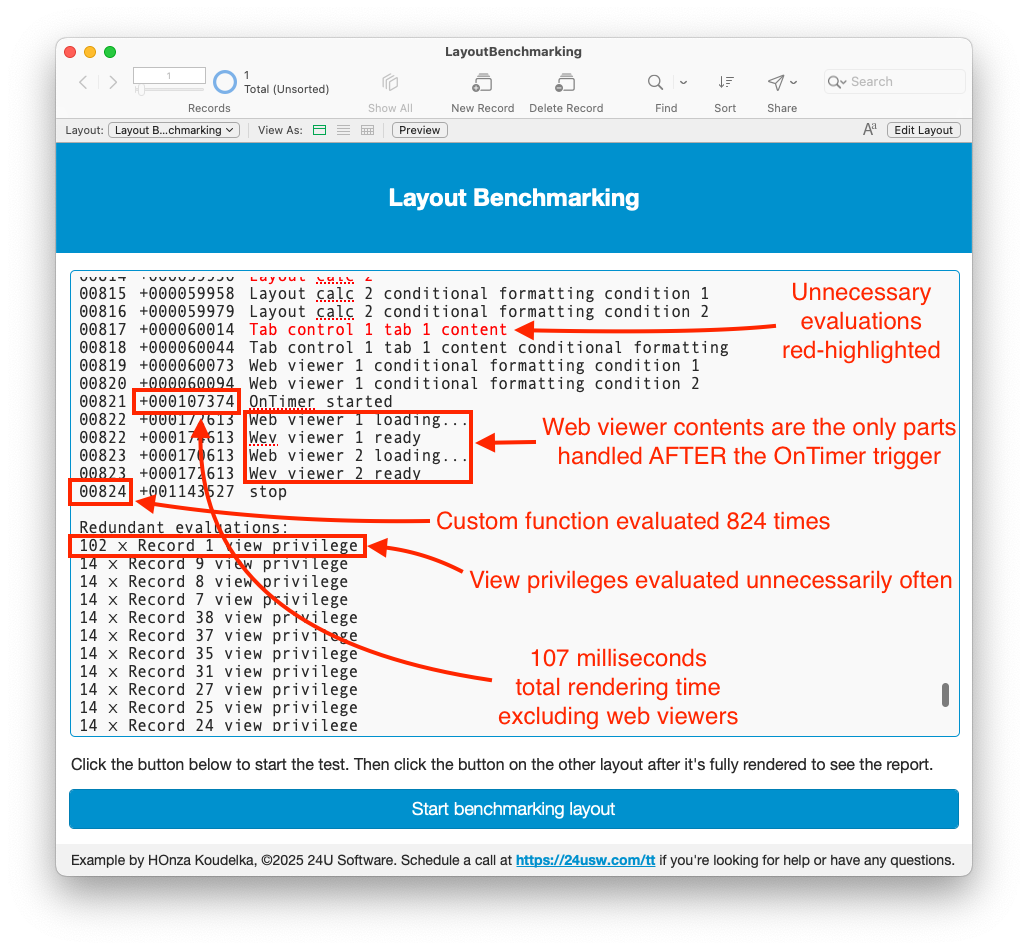
Of course, this method is limited to places where we can attach calculations, and the effort needed to do so is probably not reasonable for any of your existing busy layouts. On the other hand, even just examining the log from my example can shed a lot of light on what FileMaker Pro does, and in what order, to render a layout. If you are interested in further help figuring out what is happening behind the scenes in your solution, feel free to schedule a call with me to discuss it.